 Eats365 Products
 Merchant Guide
 Modules
 Membership
 Integrations
 Hardware
 Staff Operations
 Roles & Permissions
 Payments
 Reports
 What’s New
 Release Notes
 Troubleshooting
 Simulators
 Glossary
 Troubleshooter
 System Status
mPOS
Table of Contents
Configure mPOS settings
Learn how to customize your settings on the mPOS app.
Changing the settings on the mPOS allows you to customize the app’s behavior based on your preferences.
In this article, you’ll learn the different settings for mPOS and how to change them.
To change mPOS settings, follow the steps below:
- On your Android device, open the mPOS app.
- At the top left, tap Menu
 .
.
- Tap Settings
 .
. Tip: You can also access the settings by tapping Settings at the top right of the table map screen.
 - Choose a setting, then change the options according to your preferences.
 Note: The changes take effect immediately.
mPOS settings
You can change the following options in the mPOS app:
Versions
This setting automatically detects if there are changes made to the menu or the Table Map setup. If a new version is available, a prompt appears on the mPOS Table Map screen to download the latest settings.

Tap Update to download all new changes to the menu and table.

Language
Sets the mPOS system language.

Cart View
Sets the Cart view to "Minimized " or "Half Screen."
-
Minimized: Hides the items inside the cart.

-
Half screen: Displays the items inside the cart.

Order Display
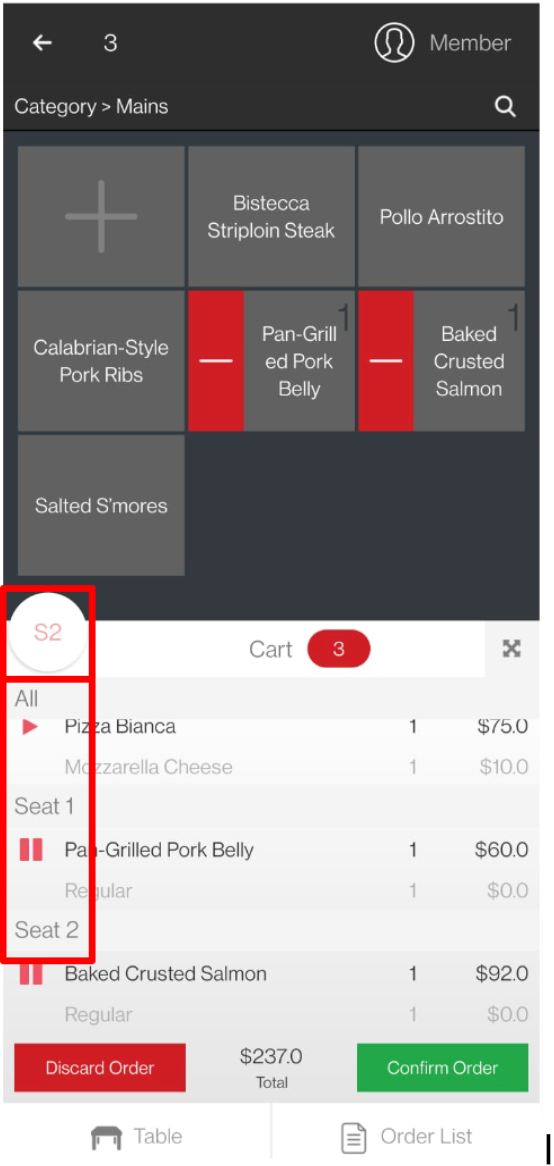
Sets the Order Display to "By Seat" or "By Order."
-
Order Display By Seat: Specify which seat orders a particular Item by tapping on the seat option at the top left of the cart. You can also select whether an order is meant for all.
-
Order Display By Order: Displays all orders in a single list.

Combo Order Entry Mode
Sets the Combo Order Entry Mode to "Default" or "Prompted."
- Prompted: When enabled, you’ll be prompted to tap Next before tapping Add to confirm.
- Default: When enabled, you can simply tap Add to confirm. You don’t need to tap Next.
Show Category Bar in Combo
Displays the Category Bar for combo items.
User Scrollable Category Bar in Combo
Sets the Category Bar to be scrollable.
Text Size
Toggles the mPOS system text size:
- Normal
- Large
| Normal | Large |
 |
 |
Party size Dialog Style
Sets the style of the Party Size input:
- Keypad

- Selection

- Not required
Reset Course Value for Every Seat
Resets the Course Value for every seat.

Quick Mode
Skips the modifier page when adding an item. A user can long-press an item to enter the modifier page.
Draft Order Mode
Saves all unconfirmed orders as a draft when a server leaves the order-taking screen. A server can tap on the table anytime to retrieve the draft order and send it to the kitchen once confirmed.
Change Password
Changes the staff passcode for the mPOS.

Send Log
Sends diagnostic data to Eats365.
