Branded Online Store
Table of Contents
Set up SMS Notification
Learn how to set up SMS Notifications so customers receive messages on their mobile devices about changes to their order status.
By default, when a customer places an order in your restaurant through the branded online store, they receive a notification regarding the status of their orders through their registered email address. To make it easier for your customers to check their order status, you can send an SMS message to their mobile devices by turning on SMS Notification.
In this article, you’ll learn how to set up SMS Notification so customers can get notified of their order status through their mobile devices.
Enable SMS Notification
To set up SMS Notification, follow the steps below:
Merchant Portal (Classic Theme)
- Log in to the Merchant Portal.
- On the left panel, click on Integration. Then, select SMS Notification.
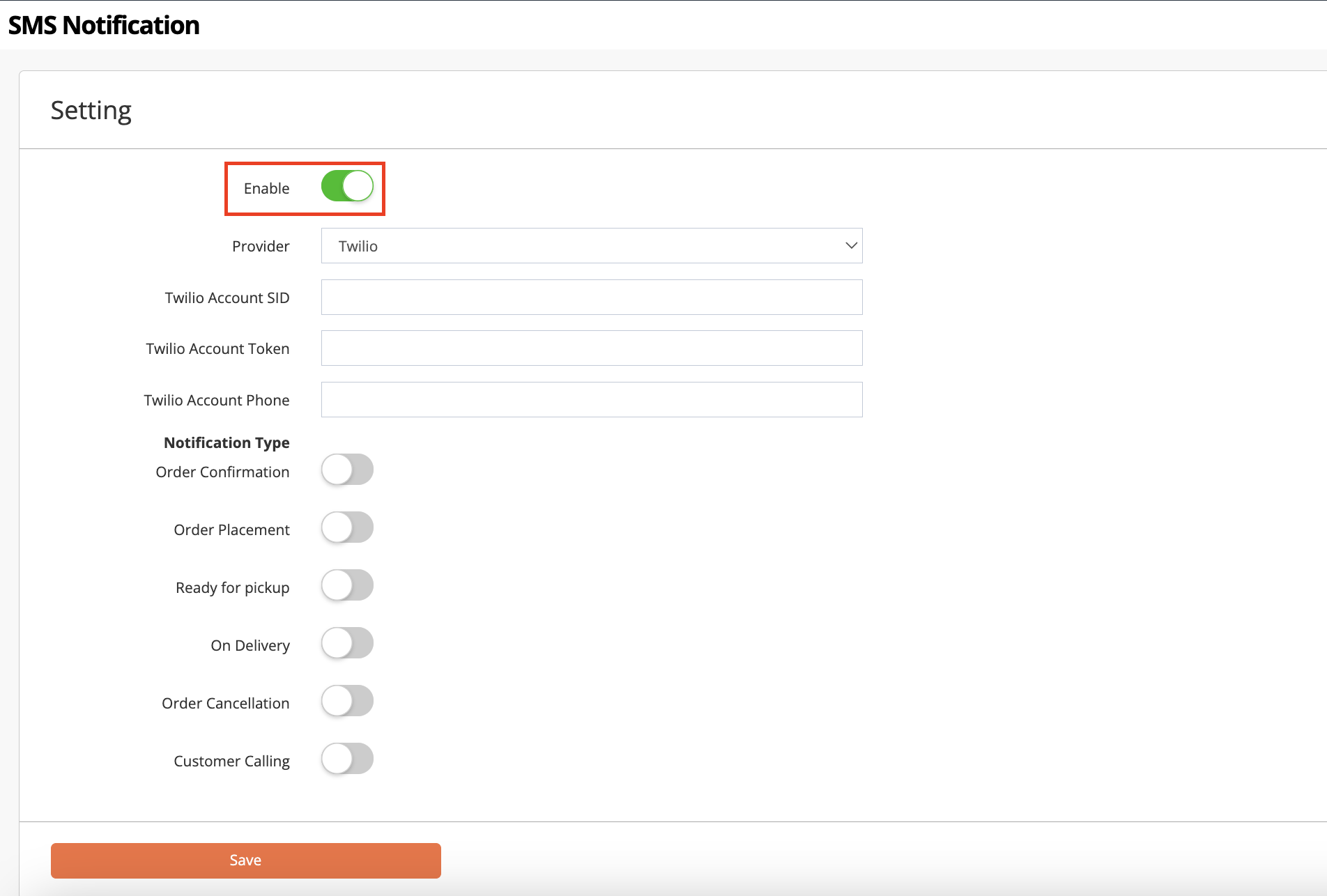
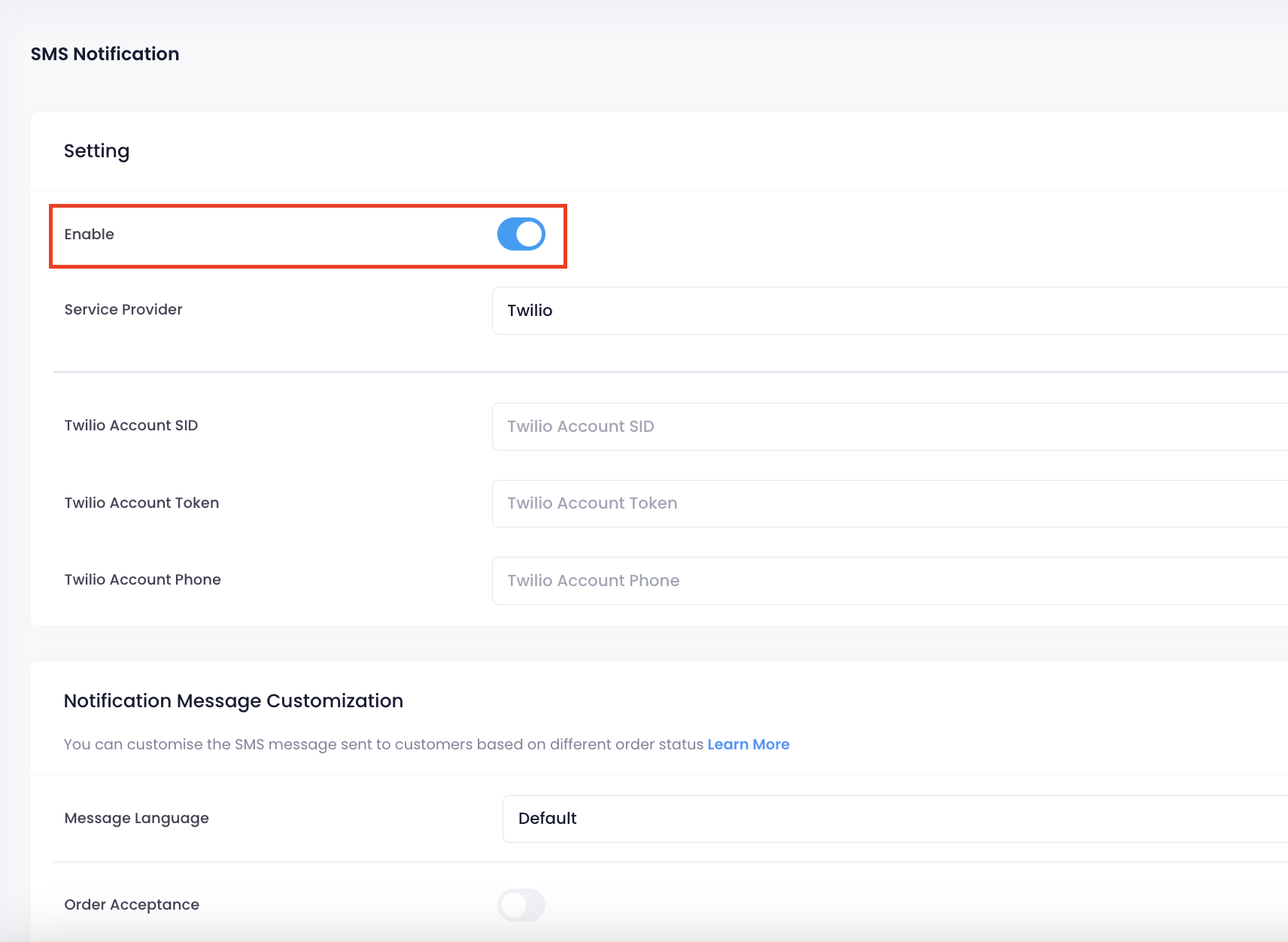
- To activate SMS Notification, turn on Enable
.
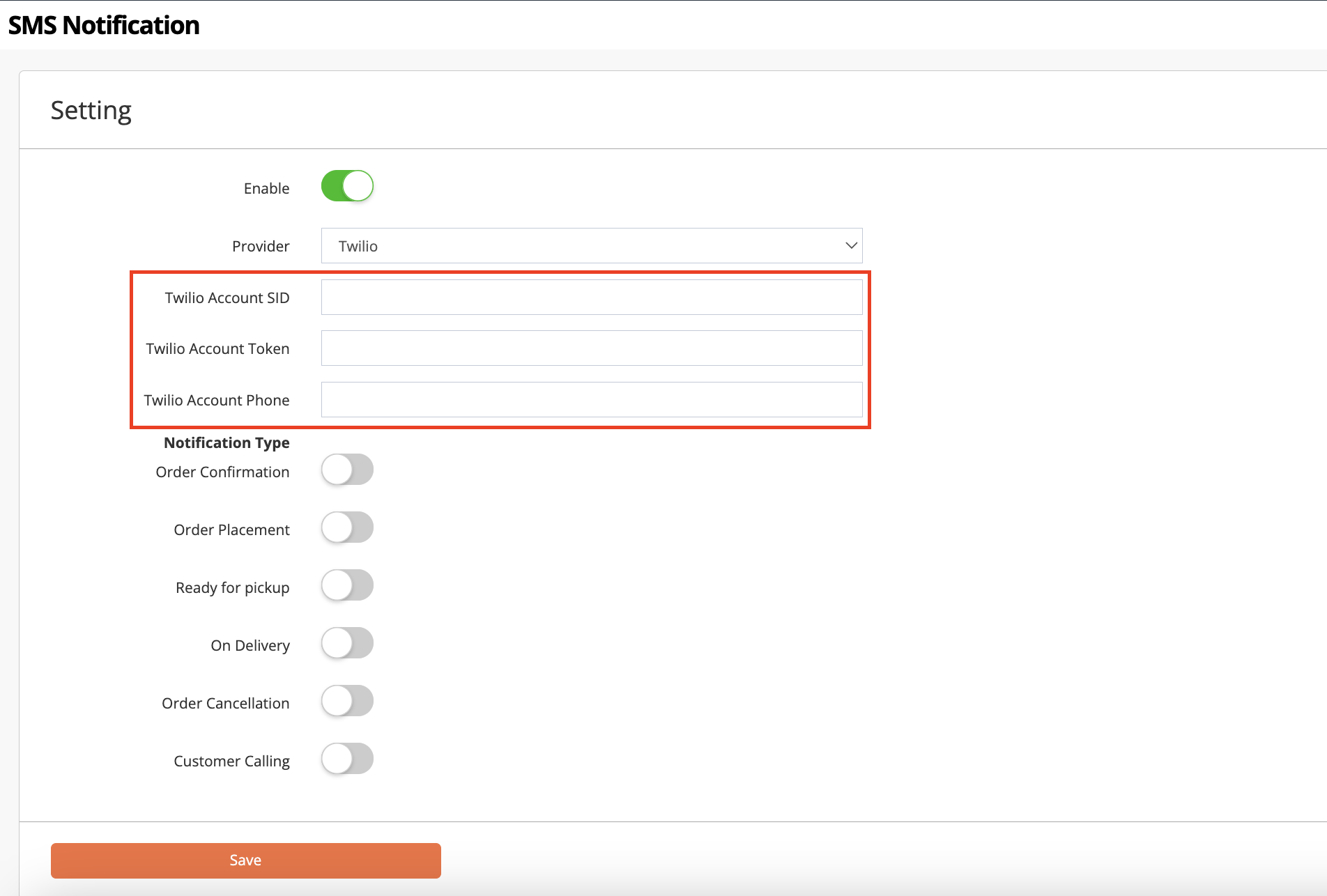
- Select the SMS service provider that you want to use.
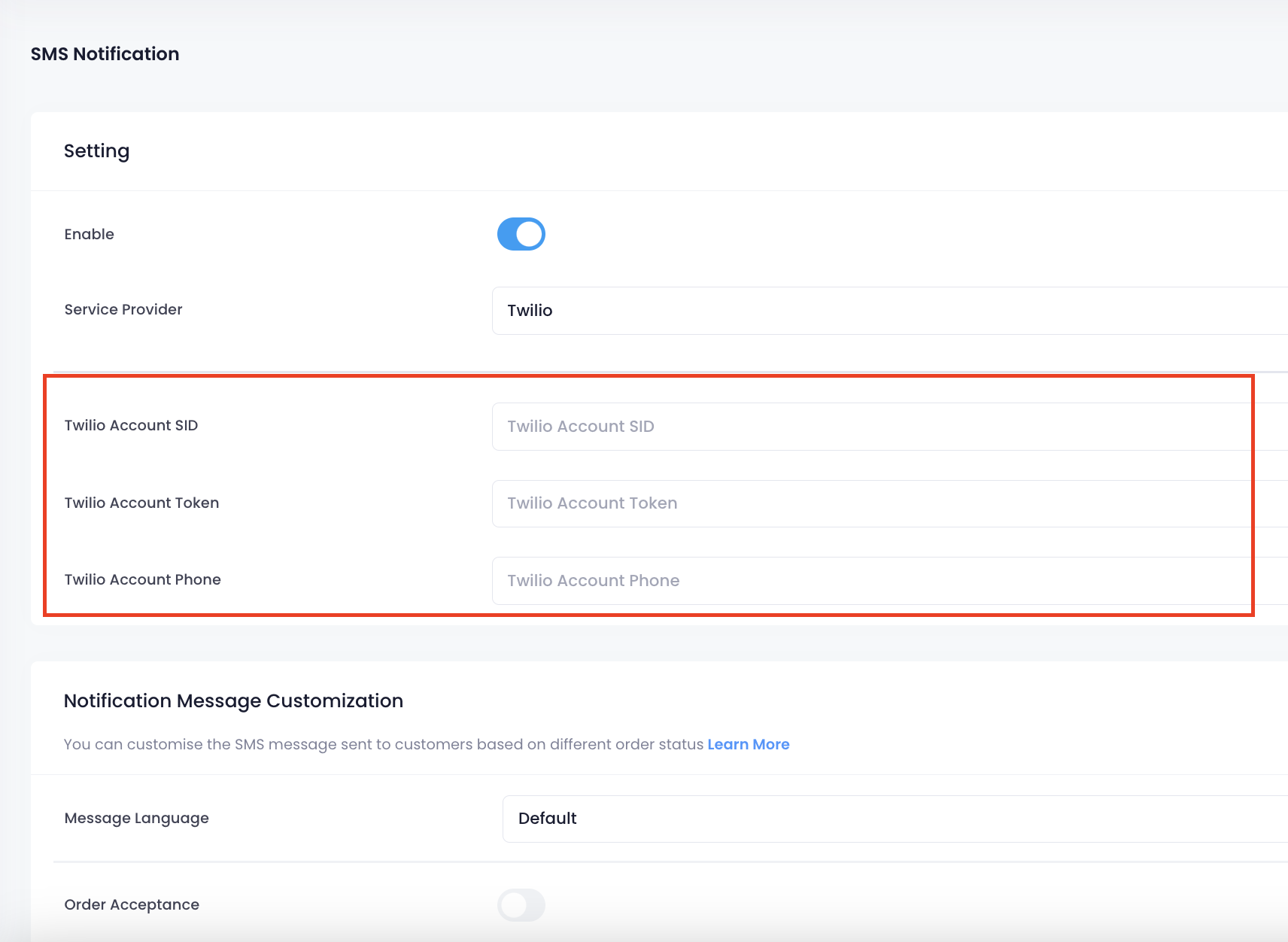
- Enter your account details.
Note: You can get the Account SID, Account Token, and Account Phone from your SMS service provider.
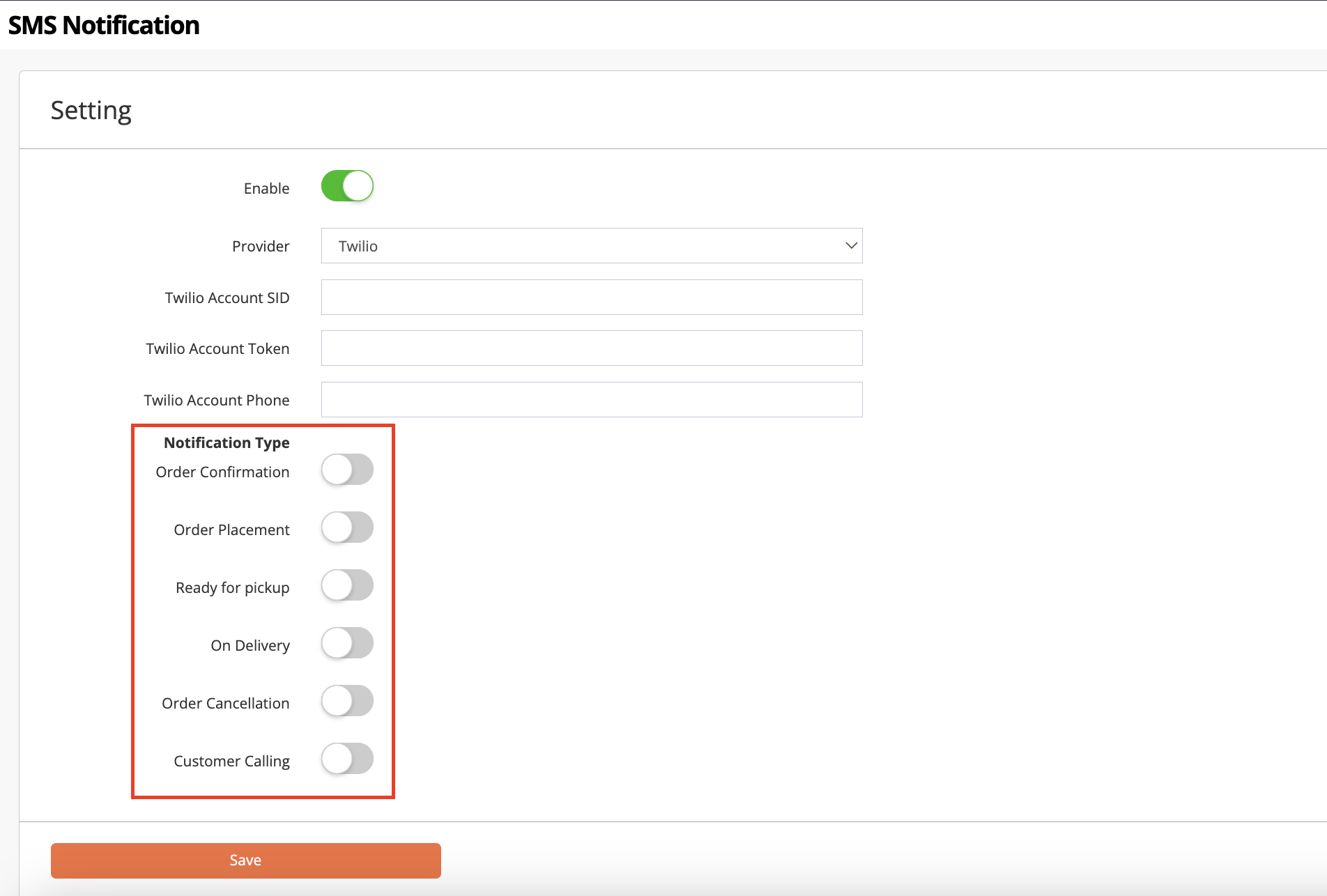
- Under Notification Type, select the type of notification that you want customers to receive. You can choose from the following notifications:

- Order Confirmation - The customer will be notified when their order is confirmed on the Eats365 POS.
- Order Placement - The customer will be notified if their order is successfully placed on the website.
- Ready for Pickup - The customer will be notified when their order is ready for pickup.
- On Delivery - The customer will be notified when their order is already being delivered.
- Order Cancellation - The customer will be notified when their order is cancelled.
- Customer Calling - The customer will be notified when their order number is called from the Expedite Display.
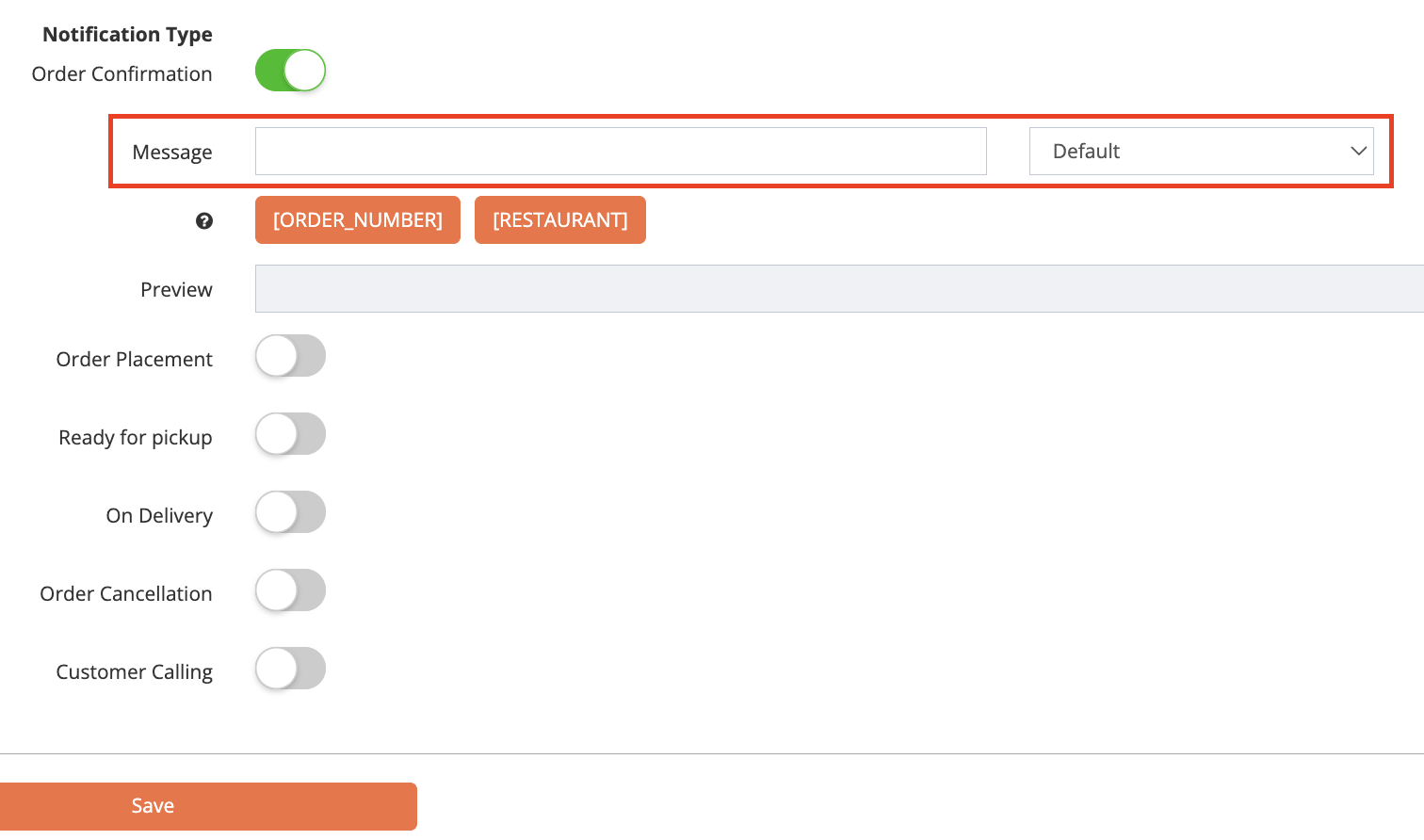
- Add a custom message to the SMS notification per language.
- You must add a custom message in the default language. To add a custom message in a different language, click on the language drop-down list and select another language.
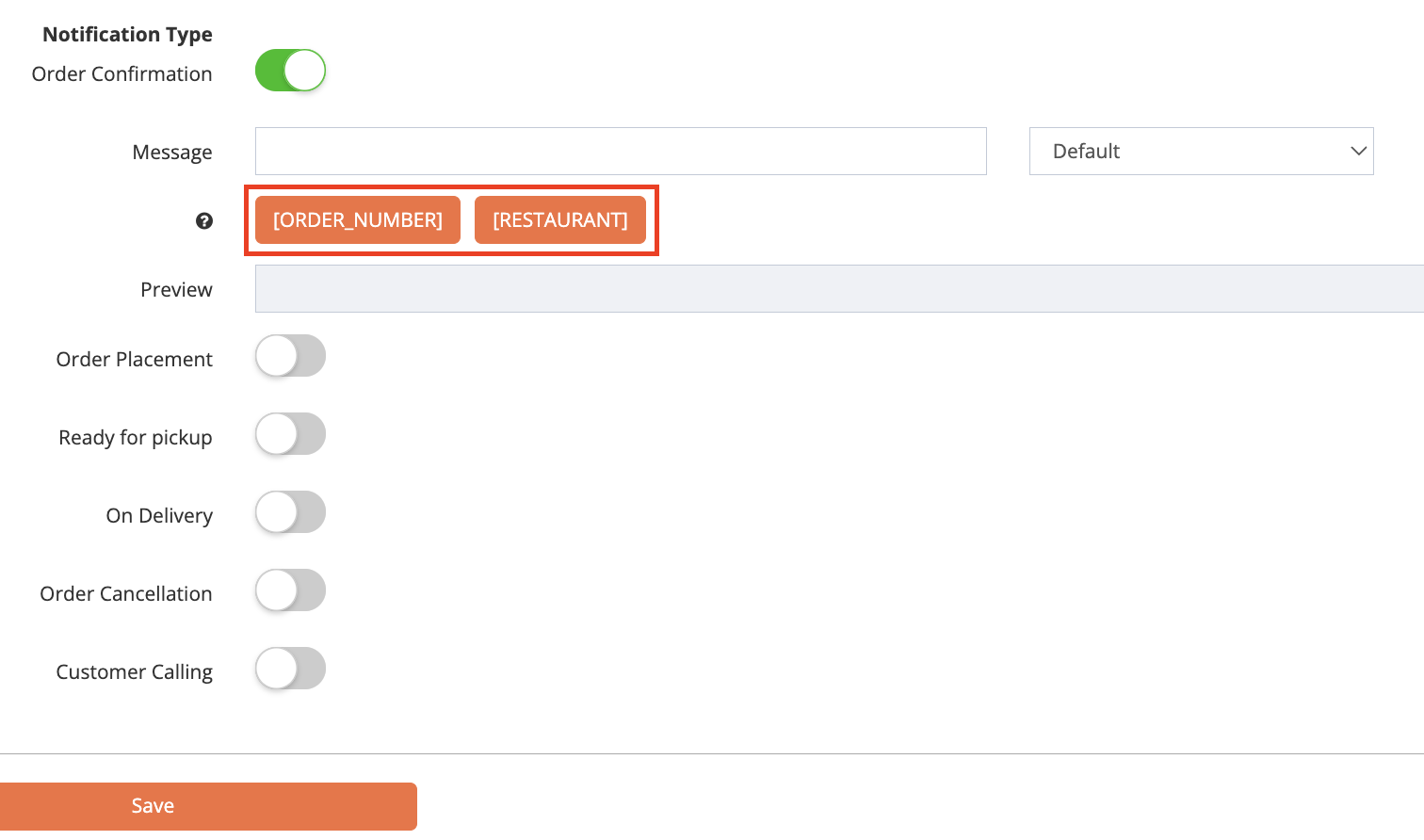
- If you want to add your restaurant’s name and the customer’s order number on the notification, click on the Variable(s).
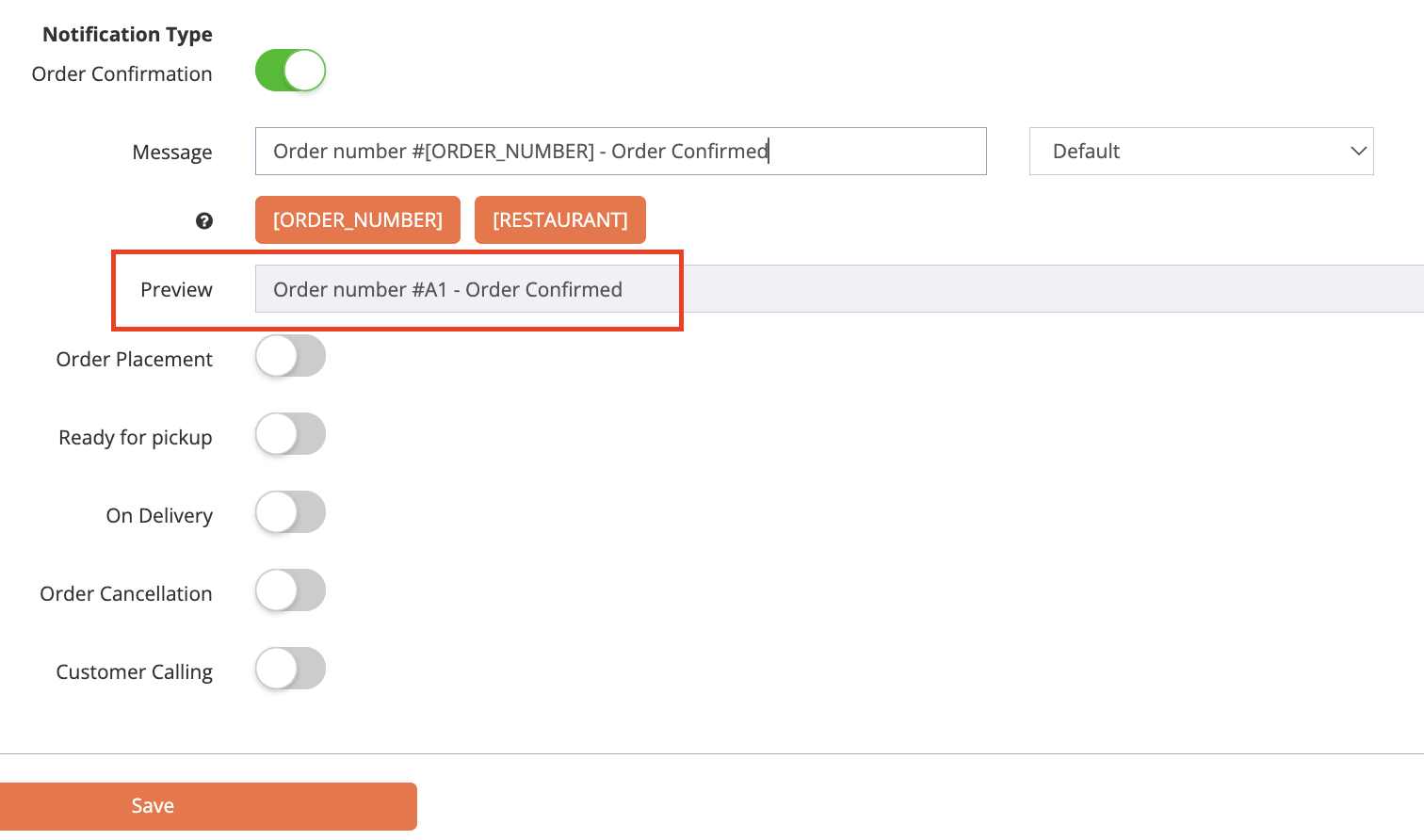
- Next to Preview, you’ll find a sample of the custom message you’re creating.
- Click on Save to confirm.
Merchant Portal 2.0
- Log in to the Merchant Portal.
- On the left panel, click on Modules. Then, select Branded Online Store.
- Click on SMS Integration.
- To activate SMS Notification, turn on Enable
.
- Select the SMS service provider that you want to use.
- Enter your account details.
Note: You can get the Account SID, Account Token, and Account Phone from your SMS provider.
-
Under "Phone Country Code Settings," click on the Available Phone Country Code drop-down and select your preferred phone country code list setup. This phone country code list preference applies to the Register Account and Guest Checkout sections on the Branded Online Store.

- Default Country Code: The list displays all phone country codes.
- Specific Country: You select the phone country codes you want to include in the list.
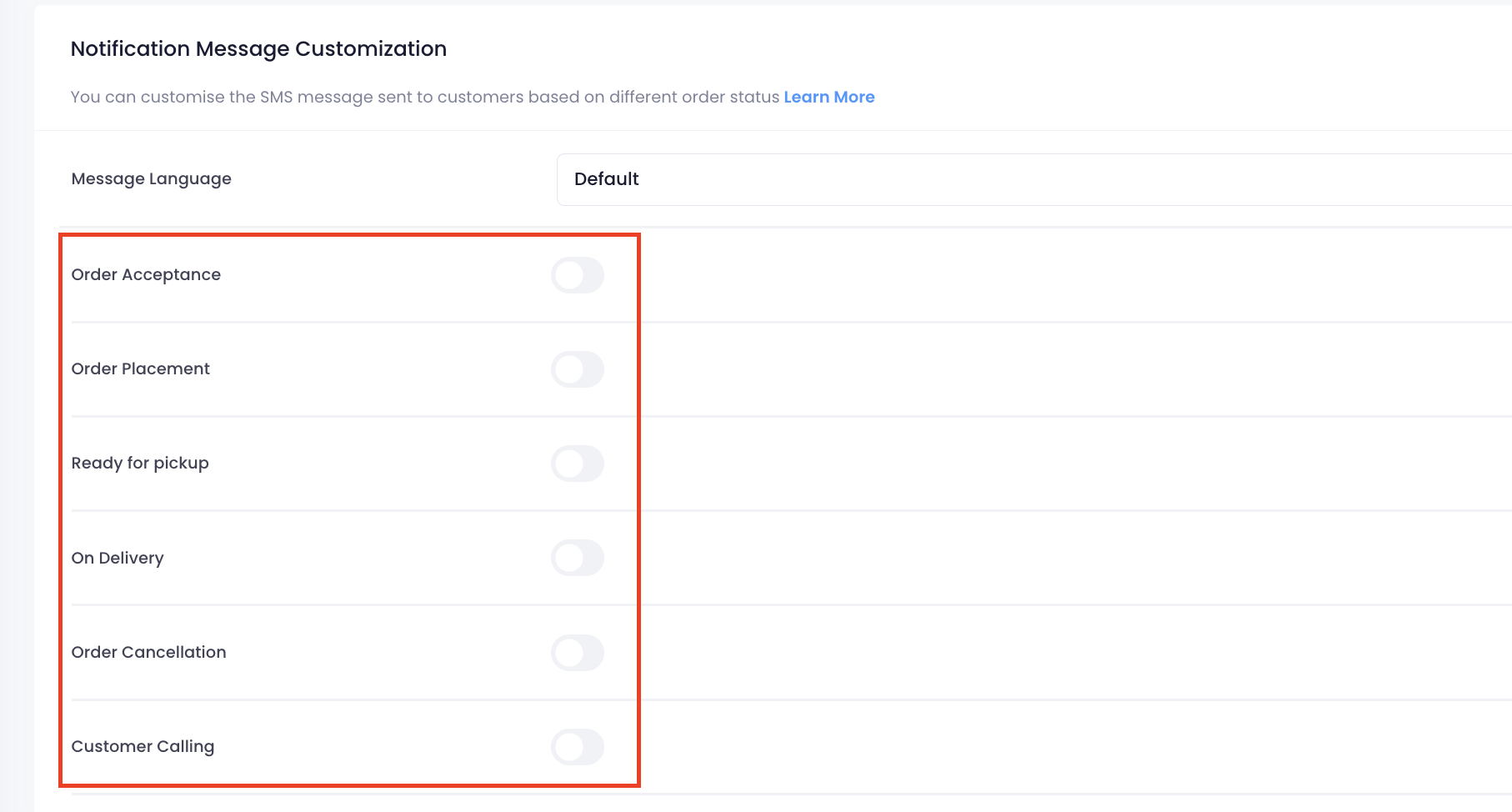
- Under "Notification Message Customization," select the type of notification that you want customers to receive. You can choose from the following notifications:

- Order Acceptance: The customer will be notified when their order is confirmed on the Eats365 POS.
- Order Placement: The customer will be notified if their order is successfully placed on the website.
- Ready for Pickup: The customer will be notified when their order is ready for pickup.
- On Delivery: The customer will be notified when their order is being delivered.
- Order Cancellation: The customer will be notified when their order is cancelled.
- Customer Calling: The customer will be notified when their order number is called from the Expedite Display.
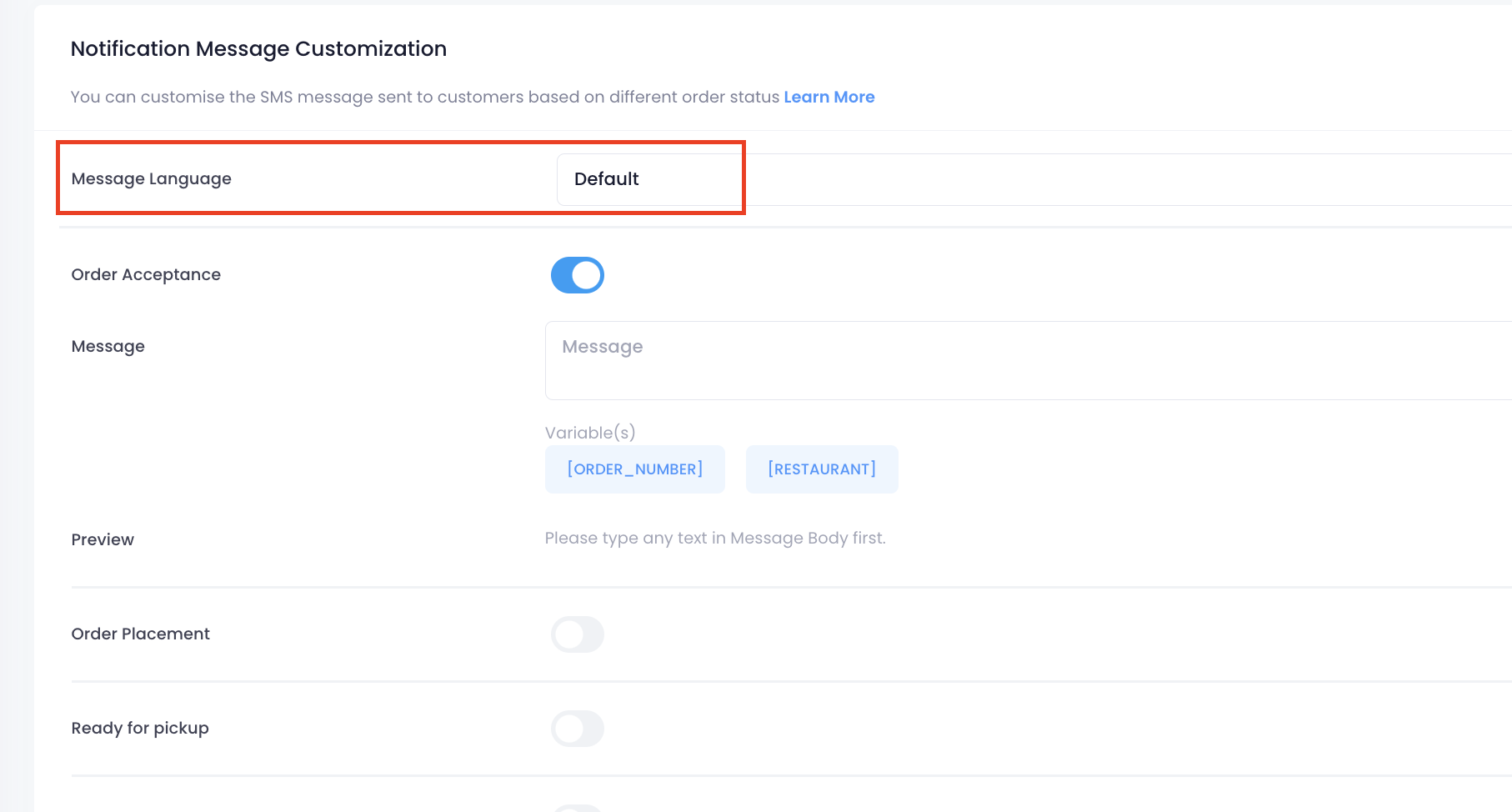
- Add a custom message to the SMS notification per language.
- You must add a custom message in the default language. To add a custom message in a different language, click on the language drop-down list and select another language.
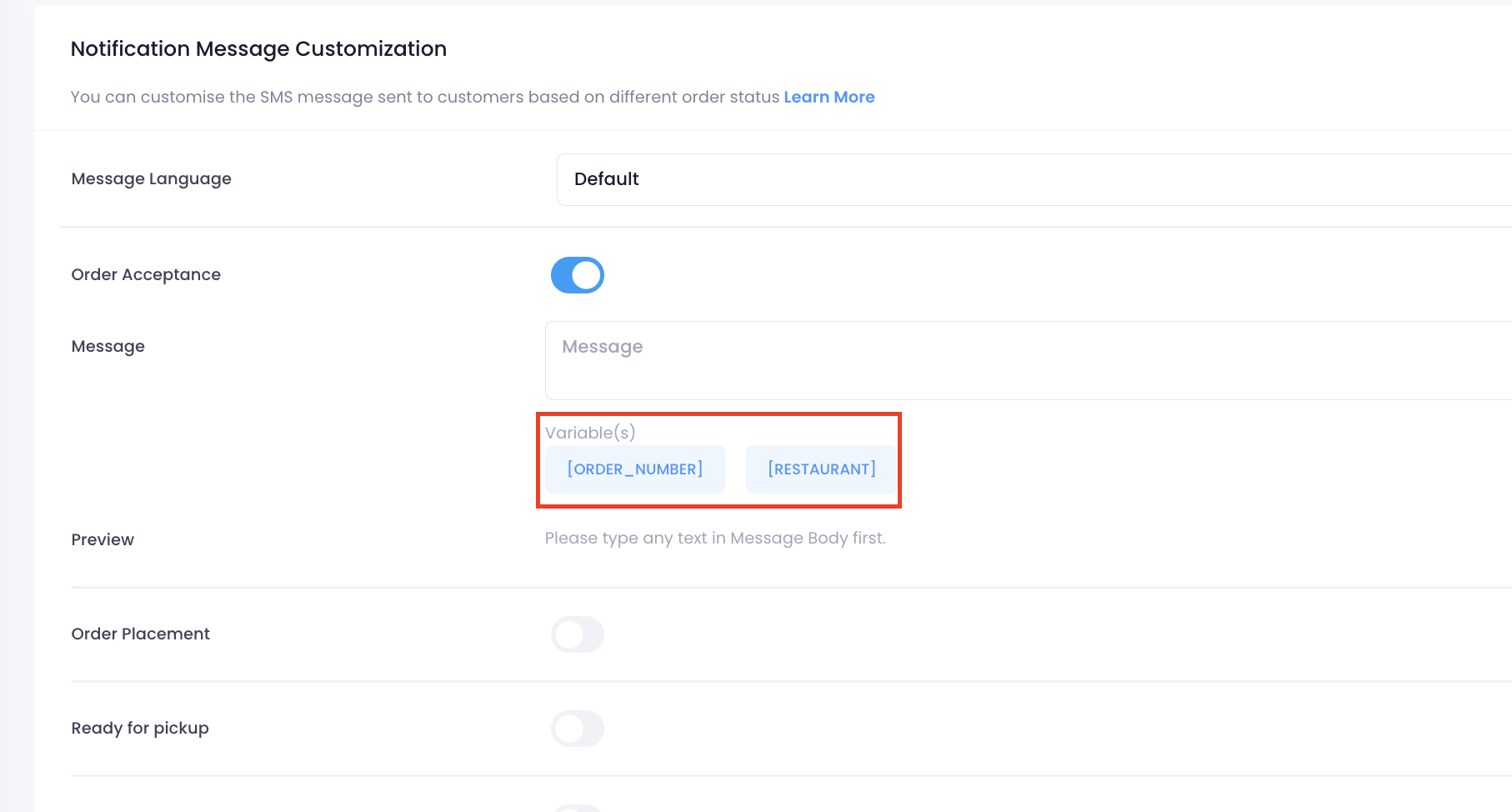
- If you want to add your restaurant’s name and the customer’s order number on the notification, click on the Variable(s).
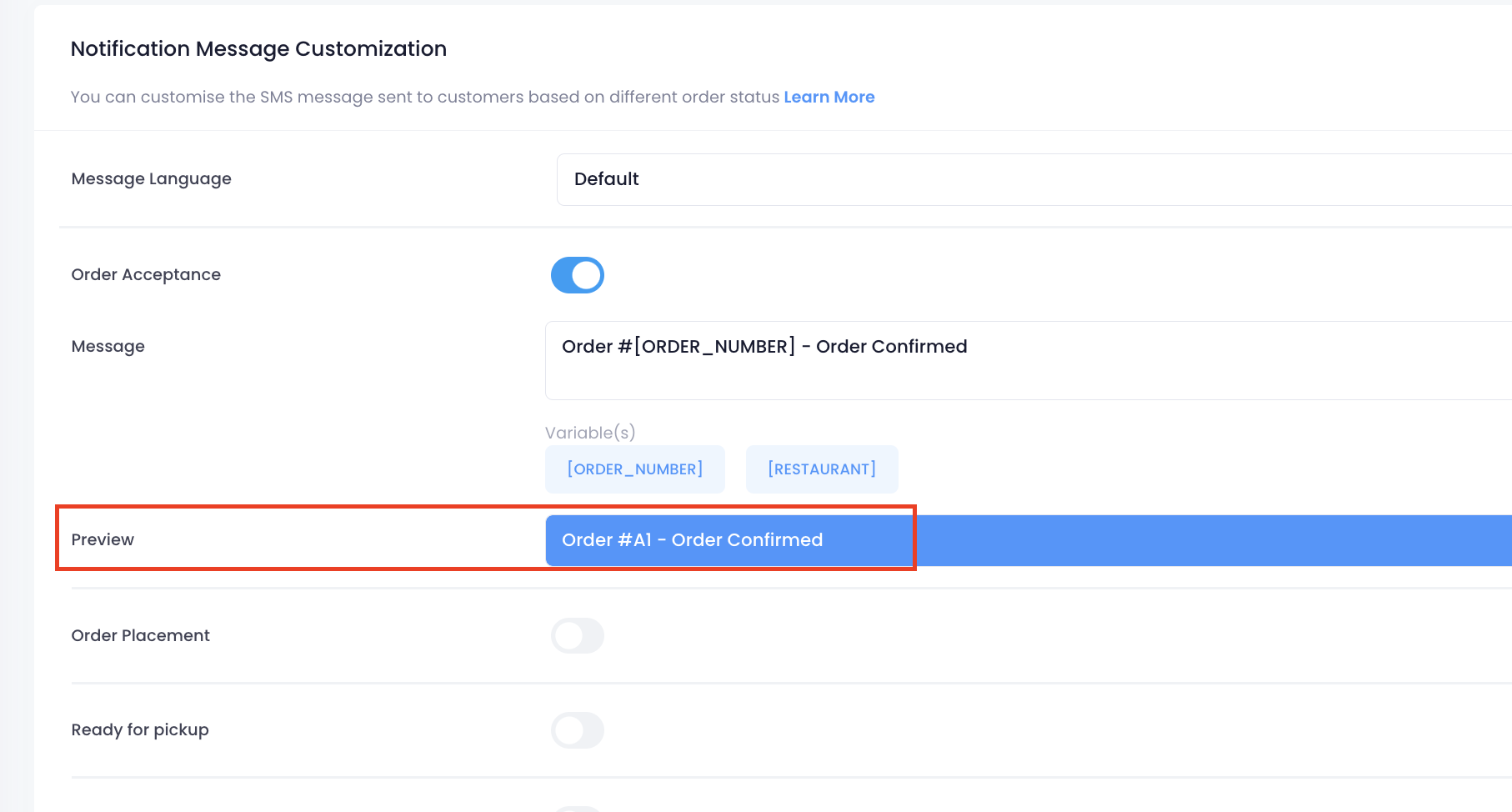
- Next to "Preview," you’ll find a sample of the custom message you’re creating.
- Click on Save to confirm.