All

    Contact Us

    If you still have questions or prefer to get help directly from an agent, please submit a request.
    We'll get back to you as soon as possible.

    Please fill out the contact form below and we will reply as soon as possible.

    • Product
      • Eats365 Products
      • Merchant Guide
      • Modules
      • Membership
      • Integrations
      • Hardware
    • Operations
      • Staff Operations
      • Roles & Permissions
      • Payments
      • Reports
    • News
      • What’s New
      • Release Notes
    • Tools
      • Troubleshooting
      • Simulators
      • Glossary
      • Troubleshooter
      • System Status
    • Login
    Mandarin
    English (US)
    Mandarin
    Cantonese
    • Product
      • Eats365 Products
      • Merchant Guide
      • Modules
      • Membership
      • Integrations
      • Hardware
    • Operations
      • Staff Operations
      • Roles & Permissions
      • Payments
      • Reports
    • News
      • What’s New
      • Release Notes
    • Tools
      • Troubleshooting
      • Simulators
      • Glossary
      • Troubleshooter
    Login
    • Home
    • 模块

    Eats365 Biz and Biz Lite

    All Product

    Contact Us

    If you still have questions or prefer to get help directly from an agent, please submit a request.
    We’ll get back to you as soon as possible.

    Please fill out the contact form below and we will reply as soon as possible.

      • mPOS
          • 设置并安装mPOS
          • 配置 mPOS 设置
          • 管理 mPOS 应用程式上的订单
          • 管理 mPOS 应用程式上的餐桌
          • 在 mPOS 上处理支付宝付款
          • 从 mPOS 打印收据和QR码
          • 管理 mPOS 上的自行结帐订单
          • 在 mPOS 上设置打印机
      • 图片餐牌
          • 设置并安装 电子餐牌
          • 配置电子餐牌设置
          • 在电子餐牌上下单
          • 将 PhotoMenu 设置为移动或固定的电子菜单
          • 在图片餐牌上使用服务通知
      • 排队机
          • 设置并安装排队机
          • 从排队机发放排队票
          • 配置排队机设置
      • 电子招牌
          • 设置与安装电子显示屏 (eSignage)
          • 配置电子标牌设置
      • 厨房显示器
          • 设置并安装厨房出菜显示
          • 配置厨房出菜显示设定
          • 在厨房出菜显示上管理订单
      • 顾客显示屏
          • 设置和安装顾客显示屏
          • 配置顾客显示屏设置
          • 透过顾客显示屏给予小费
          • 启用顾客显示屏的小费提示功能
      • 出餐系统
          • 设置并安装 Expedite Display
          • 配置加速显示设置
          • 执行基本的出餐系统操作
      • Eats365 Biz and Biz Lite
          • 设置和安装Eats365 Biz 和Eats365 Biz Lite
          • 配置 Eats365 Biz 设定
          • 在 Eats365 Biz 上管理订单
          • 重置Eats365商务版
          • 比较Eats365 Biz 和Eats365 Biz Lite
          • 配置Eats365 Biz Lite 设置
          • 在 Eats365 Biz 上下单
          • 在 Eats365 Biz 上处理付款
          • 设置与管理 Eats365 Biz 的整合式付款
          • 在 Eats365 Biz 开立电子发票 (台湾)
      • 自助点餐系统
          • 设置并安装自助点餐系统
          • 在自助点餐机上下单
          • 配置自助订购亭 (iOS) 设置
          • 配置自助点餐机(安卓)设定
          • 在自助订购亭处理付款退款
          • 在自助点餐机 (安卓) 上设置 Eats365 CRM
          • 在自助点餐机 (安卓) 上使用会员积分和储值金
          • 在自助点餐机 (安卓) 上处理 “八达通” 付款
          • 在自助点餐机上处理付款
          • 在自助点餐机上生成台湾电子发票
      • 自动缴费终端机
          • 设置并安装 Pay Station
          • 使用 Pay Station 付款
          • 配置支付站设置
      • 动态数字菜单
          • 管理电子菜单上的菜单
      • 品牌网上商店
          • 管理线上落单网站偏好设置
          • 设置提示讯息
          • 使用餐厅线上下单网站订位
          • 更改线上下单网站的密码
          • 在线上落单网站下订单
          • 删除线上下单网站的帐户
          • 登录和登出线上下单网站
          • 在线上下单网站创建帐户
          • 管理线上落单网站的订单
          • 在线上下单网站上设置外送地址簿
          • 确保会员储值金额在线上下单网站安全
          • 使用储值金额支付线上下单网站的订单
          • 使用线上下单网站购买会员储值
          • 加入餐厅的会员计划
          • 建立线上落单网站
          • 分享线上落单网站的链接
          • 在手机主屏幕上新增线上落单网站的快捷方式
          • 在线上落单网站留下餐厅评论

    Table of Contents

    在 Eats365 Biz 上处理付款

    了解如何在 Eats365 Biz 上处理付款和取消订单。

    Eats365 Biz 让您能使用便携式 POS 设备,执行重要的付款相关功能,例如处理付款和取消订单。

    在本文中,您将了解如何使用 Eats365 Biz 处理付款和取消订单。

    处理订单付款

    在订单可供外卖自取或外送之前,顾客必须结清帐单。

    若要处理订单付款,请按照以下步骤操作:

    1. 开启 Eats365 Biz 应用程式。
    2. 在 “订单” 页面,点击您要付款的订单。萤幕将显示所有待处理的订单详情。

      提示:
      • 如果有多个订单,您可以直接从搜寻栏搜寻订单。要进一步筛选搜索,请点击搜寻栏旁边的「筛选」 。

      • 若要更改订单视图,请点击可用的订单视图选项,或点击订单历史记录 。
    3. 点击底部的「付款」。

    4. 在 “付款方式” 下,选择顾客喜欢的付款方式。

    5. 在右下角,点击「付款」。
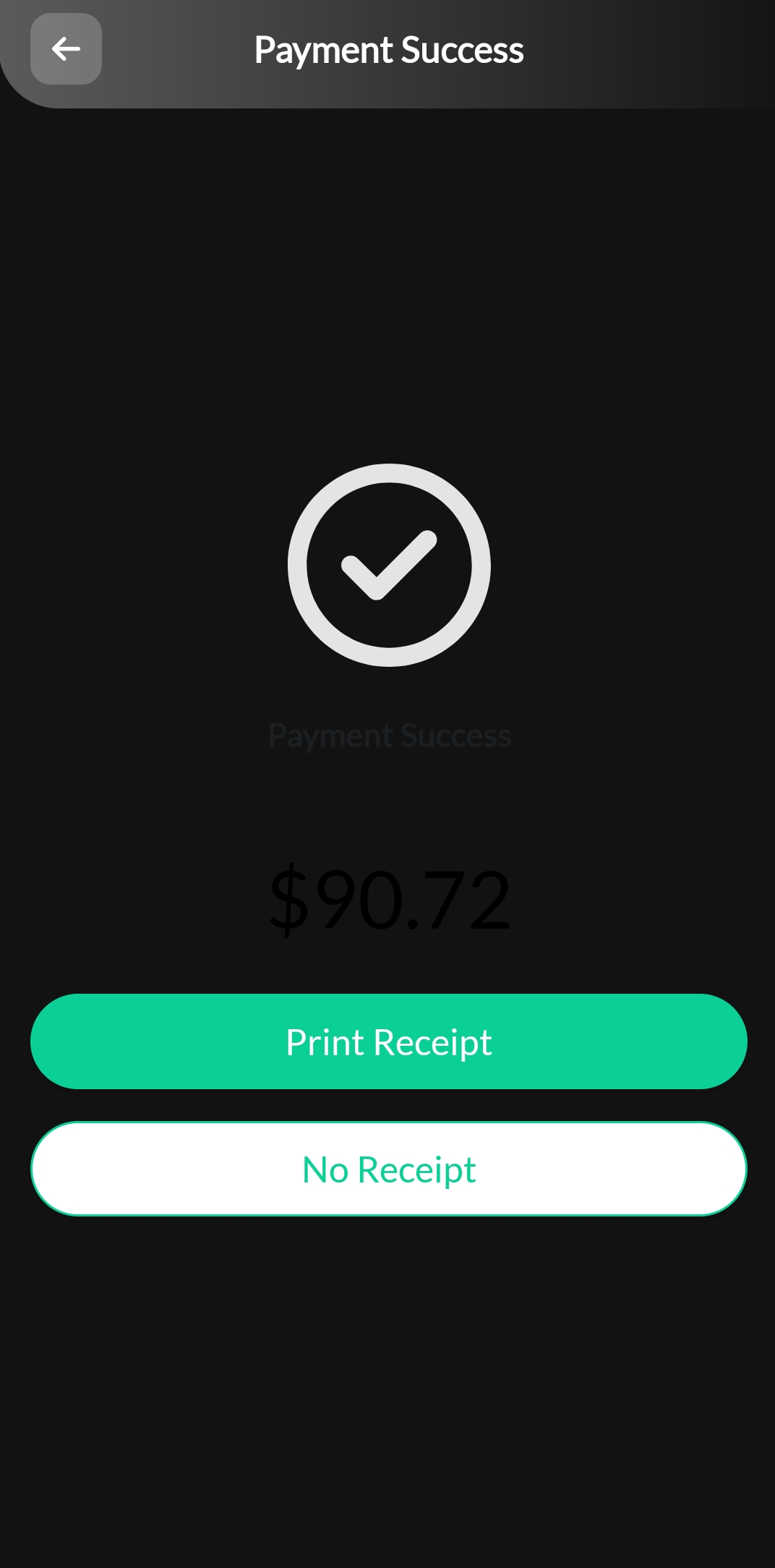
    6. 点击「打印收据」即可开立收据。点击「不需要收据」即可跳过打印收据。

    取消订单

    Eats365 Biz 也能取消透过 Eats365 Biz 或您餐厅线上渠道所下的已付款订单。

    若要取消订单,请按照以下步骤操作:

    1. 开启 Eats365 Biz 应用程式。
    2. 在 “订单” 页面,点击您想要取消的订单。
      提示:
      • 如果有多个订单,您可以直接从搜寻栏搜寻订单。要进一步筛选搜索,请点击搜寻栏旁边的「筛选」 。

      • 若要更改订单视图,请点击可用的订单视图选项或点击订单历史记录。
    3. 在右上角,点击「退款」。

    4. 选择 “退款原因” 并新增讯息(可选)。

    5. 点击「完成」以进行确认。
    流程 支付

    Was this article helpful?

    Yes
    No
    Give feedback about this article

    Related Articles

    • 在 Eats365 Biz 上管理订单
    • 配置Eats365 Biz Lite 设置
    • 在 Eats365 Biz 上下单
    • 配置 Eats365 Biz 设定
              • Products
                • POS
                • mPOS
                • Eats365 Biz
                • Eats365 Marketplace
                • Branded Online Store
                • Kitchen Display System
                • Expedite Display
                • Scan-to-Order (BYOD)
                • Self-Service Kiosk
                • PhotoMenu
                • Queue Kiosk
                • Dynamic Digital Menu
                • Queue Display
                • Pickup Display
                • Customer Facing Display
              • Solutions
                • Online Ordering
                • Contactless Dining
                • Front of House
                • Guest Retention
                • Back of House
                • Back Office (Store End)
                • Multi-brand/Location Management (Enterprise)
                • Paperless Operation Experience
                • Payment
              • Restaurant Types
                • Quick Service Restaurant
                • Full Service Restaurant
                • Bars
                • Food Court
                • Cloud Kitchen
                • Food Retail
                • Self-service Restaurant
                • Enterprise
                • All-You-Can Eat (Buffet)
              • Resources
                • Eats365 Knowledge Base
                • Blog
                • Supported Hardware
              • Company
                • About Us
                • Success Stories
                • Referrals
              • Get In Touch
              • Contact Us
                • Eats365, Inc.
                • Sales info@eats365.com
                • Support support@eats365.com
          • Contact Us
            • Eats365, Inc.
            • info@eats365.com
            • www.eats365pos.com
          • Get In Touch
            • Apple Mobility Partner
              twitter facebook eats365 linkedin
          • eats365
            © 2023 Eats365 Incorporated. All rights reserved.

    Knowledge Base Software powered by Helpjuice

    Expand